Sub-affiliates are affiliates who work under a parent affiliate. They promote products or services through their own networks, and the parent affiliate earns a commission from the sales made by their sub-affiliates. This model helps affiliates expand their networks and increase their earnings.
Our platform supports up to 7-tier affiliate campaigns, allowing affiliates to have multiple sub-affiliates under them.
Please Note:
The campaign you want to add sub-affiliates to must be multi-tier (tier 2 or above).
Benefits of Sub-Affiliates
Sub-affiliates allow for a layered commission structure. For example, if Affiliate A refers Affiliate B, and B makes a sale, both A and B earn commissions. This encourages affiliates to grow their teams and generate more leads.
3 Ways to Add Sub-Affiliates
**1.**Add Sub-Affiliates Manually
Manually adding sub-affiliates allows for greater control over who joins a campaign.
Steps:
-
Navigate to the Affiliate Page: Go to the Affiliate Manager under the Marketing section.
-
Select an Affiliate: Click on the affiliate you want to add sub-affiliates under.
-
Switch to Sub-Affiliate Tab: Scroll down to the "Sub-Affiliate" tab.
-
Add Sub-Affiliate: Click the "Add Sub-Affiliate" button.
-
Choose Campaign: Select the desired campaign from the dropdown.
6. Select Sub-Affiliates to Add: Choose the affiliates you want to add.
Remove Existing Sub-Affiliates: Remove any unwanted sub-affiliates, if needed.
Add New Affiliate Profile (Optional): Create and add a new sub-affiliate if the desired one doesn't exist.
Save: Save the changes.
**2.**Auto-Enroll New Customers as Sub-Affiliates
This option allows you to automatically enroll new customers as sub-affiliates under the affiliate who referred them after a successful sale.
Steps:
- Go to the Sub Account Affiliate Manager.
- Open an existing campaign or create a new one.
- In the last step, expand Additional Settings.
- Toggle on Auto Enroll New Customers as Sub-Affiliates.
- Save and publish the changes.
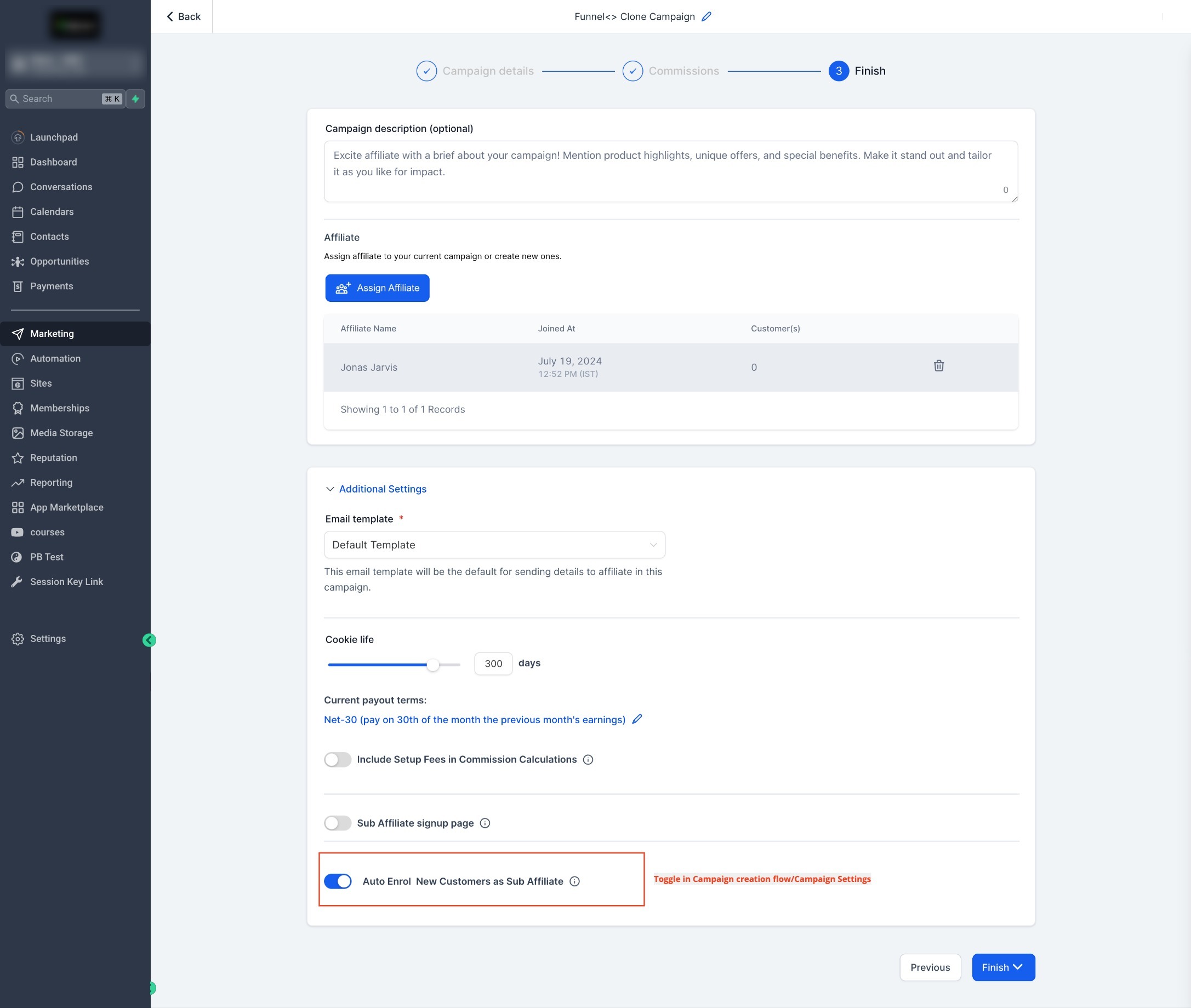
You can also enable or disable this setting globally in the Global Settings section. This will apply to all future campaigns.
**3.**Allow Affiliates to Recruit Their Own Sub-Affiliates
Affiliates can recruit sub-affiliates themselves by sharing a sign-up link. This process makes onboarding easy and gives affiliates more autonomy.
Steps:
-
When creating or editing a campaign, go to the last step and click on Additional Settings.
-
Toggle on Sub-Affiliate Sign-Up Page.
3. Select the form you want to use for sub-affiliate sign-ups.
4. Save the changes by clicking Finish.
You can also configure this option globally in the Global Settings. Affiliates will see a sign-up link in their affiliate portal, which they can share to recruit sub-affiliates.
The Affiliate portal will also show a list of all sub-affiliates under each affiliate.
Please note:
Forms used for sub-affiliate sign-ups must include First Name, Last Name, and Email. Missing fields will result in errors.
The Sub-Affiliate Sign-Up feature only works for multi-tier campaigns (tier 2 or higher).
Changes in global settings will only apply to future campaigns.
By leveraging these methods, you can grow your affiliate network and manage your sub-affiliates effectively, boosting overall sales and commissions.